
AI Share Copy
AI Share Copy drafts your post for you, right inside the post composer. Give it a link, a document, an image, or a few rough sentences, and it generates a post title, a Note to Team, and ready-to-share copy variations (with hashtags) for your social networks. Your team lands on the share screen with polished, on-message options waiting for them. No blank text box. No guessing what to say.
AI Share Copy is off by default. Email support@everyonesocial.com to activate it for your Workspace.
This is available to anyone who creates or submits a post, whatever their role. Admins and Moderators publish straight to a group, and everyone else submits for approval, but the generated copy works the same either way. Brand Voice is set by Admins only.
AI Share Copy works with Link, Document, Image, and Text posts. Video posts are not supported yet.
What AI Share Copy generates
For every supported post type, AI Share Copy drafts three things at once:
- A post title for your post.
- A Note to Team, the internal message your members see alongside the post.
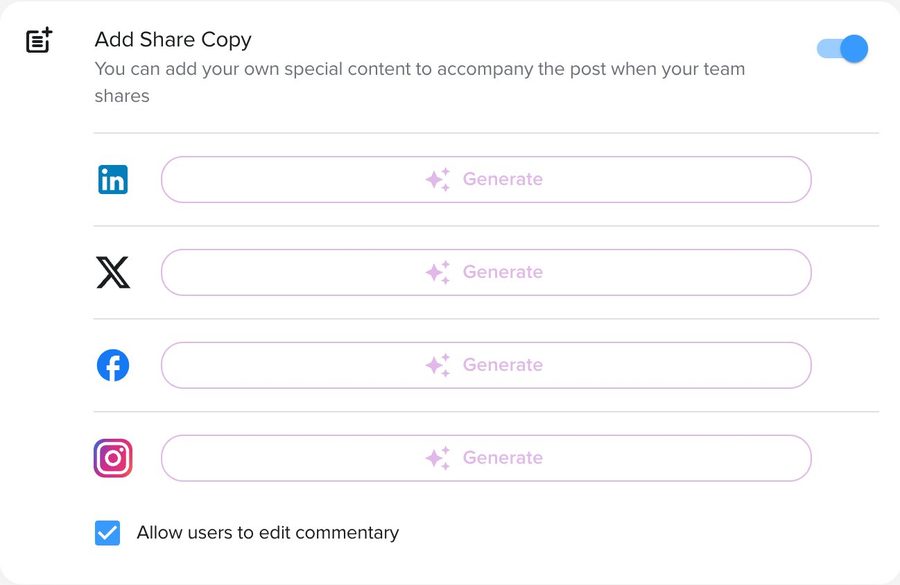
- Share copy for LinkedIn, with three variations in different lengths, from short and punchy to longer-form. Click Generate on X, Facebook, or Instagram for platform-optimized variations on those networks too.
Everything generated is a suggestion. All of it is fully editable, and nothing is published until someone deliberately posts or shares it.
Request activation
AI Share Copy is off by default for every workspace. To turn it on, your workspace admin should email support@everyonesocial.com with:
- Your workspace URL (for example, yourcompany.everyonesocial.app).
- The name and title of the workspace admin authorizing the request.
- Confirmation that your organization permits AI-assisted features on your account.
Once enabled, the feature is live for everyone who creates or submits posts. You can request deactivation at any time through the same address.
Create a Link post with AI Share Copy
Once AI Share Copy is enabled in your workspace, the flow takes about 30 seconds.
- Click Compose > Internal Post.
- Select a Group from the Select a group to post dropdown.
- With the Link tab selected, paste your destination URL into the Enter URL field and press Enter. The platform fetches the page metadata and renders a rich link preview.
- AI Share Copy starts generating automatically. You will see the post title, Note to Team, and share copy each fill in, crafted from the destination page and including relevant hashtags.
- (Optional) Click Generate for X, Facebook, Instagram, or Threads to produce platform-optimized variations. All copy is fully editable before publishing.
- Click Submit to publish to the Group's timeline.
Create an Image or Document post with AI Share Copy
Image and document posts work the same way. AI Share Copy reads what you upload and writes from it.
- Click Compose > Internal Post and select a Group.
- Select the Upload tab and add your image or document.
- AI Share Copy generates the post title, Note to Team, and share copy based on the content of your upload.
- Review, edit anything you want to personalize, and click Submit.
Create a Text post with AI Share Copy
Text posts are where AI Share Copy saves the most time. Instead of polishing your own words, write a rough version of what you want to say and let it clean things up.
- Click Compose > Internal Post and select a Group.
- Select the Text tab and type your draft. Stream of consciousness is fine.
- Click Generate with AI. AI Share Copy rewrites your draft into a polished post, plus the title, Note to Team, and share copy to go with it.
- Review, edit, and click Submit.
One thing to know: AI Share Copy refines what you give it, it does not write from scratch on a topic. Asking it to "write two paragraphs about animal welfare" returns a cleaned-up version of that sentence, not an essay. The more substance you give it, the better the result.
Set your Brand Voice
Workspace Admins can give every AI generation in the workspace a consistent voice.
- Go to Admin > Settings.
- In the settings menu, find the AI section and select Brand Voice.
- Describe how AI-generated copy should sound: tone, phrases to use, style rules, anything you want. Up to 2,000 characters.
- Click Save.
Your Brand Voice is applied to every generation in the workspace and shapes titles, Notes to Team, and share copy alike. Expect a little trial and error to get it dialed in. Start simple, for example "Confident and conversational. No jargon. Keep hashtags to two per post.", and refine based on what comes back. If you leave Brand Voice blank, generation works exactly as it does out of the box.
Share to your networks
From the Group's timeline, find the post and click the blue Share button. The Share to Your Networks page opens with:
- A full post preview on the left.
- Your LinkedIn toggled on, with the three AI variations labeled Option 1, Option 2, and Option 3.
- Other connected networks (X, Facebook, Threads) ready to toggle on.
- Send to Email and Share Directly quick options.
Pick a copy variation, select your networks, edit if you want to personalize, and click Share Now.
FAQ
Is AI Share Copy available for all post types?
It works with Link, Document, Image, and Text posts. Video posts do not generate AI share copy yet.
Can employees edit the AI-generated copy?
Yes. Every variation is fully editable on the share screen. Anyone can pick a variation, tweak the wording, and personalize before posting. See Use Share Versions to Differentiate Shared Content for related options.
What happens to the content I submit? Is it used to train AI models?
No. AI Share Copy is powered by OpenAI through an encrypted API connection (TLS 1.2 or higher). Neither EveryoneSocial nor OpenAI uses your inputs or the generated copy to train or improve AI models under our current configuration. Your inputs and the generated copy remain your data. AI Share Copy only uses what you submit for that specific request. It does not pull from your workspace analytics, member activity, messages, or any other customer's data. You can review our subprocessors at everyonesocial.com/everyonesocial-subprocessors.
Is there anything I shouldn't submit to AI Share Copy?
Treat it like any drafting tool: don't submit sensitive personal information, regulated data, credentials, or confidential third-party information. And since AI-generated text can occasionally be inaccurate or off-tone, always review before publishing.
Why does my Text post just rephrase what I typed?
That's by design. AI Share Copy polishes and expands the draft you give it rather than authoring new content from a topic request. Give it your actual rough thoughts and it will do the rest.
Why isn't AI Share Copy generating automatically for link content created by my automated content?
AI Share Copy is intended to enhance user-generated content, so it will not auto-generate for link content created by RSS Feeds or Keyword sources. If you would like a particular piece of content from an automated source to generate AI Share Copy, edit the post, remove the link, and re-add it. When the link is re-added, AI Share Copy will generate copy for your content.
Why isn't AI Share Copy turned on by default?
EveryoneSocial leaves AI features off until each customer explicitly opts in. This protects organizations whose contracts or internal policies require deliberate review of AI-assisted tooling.
Can I turn AI Share Copy off for a specific post?
Yes. Toggle the share copy section off on the Create a Post page, or remove any generated element before submitting.
How long does activation take?
Standard turnaround is two business days from receipt of a complete request at support@everyonesocial.com.